7.35 Customising Mouse Modifiers
You have already encountered many examples of how REAPER uses the mouse with and without modifiers to perform a whole range of tasks.
Kind: concept (user-guide-section) Chapter: 7 Managing and Editing Media Items Source: REAPER User Guide v7.70
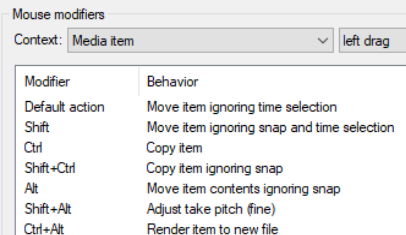
You have already encountered many examples of how REAPER uses the mouse with and without modifiers to perform a whole range of tasks. These have so far included making loop and time selections, copying and moving media items, slip editing media items, using item pencil mode, and so on. In Chapter 15, you'll learn more about how you can modify any of these if you wish, and even create your own. Meanwhile, you can find out more about the various Mouse Modifier default settings by browsing thru the Editing Behavior, Mouse Modifiers section of your REAPER Preferences. From the Context list, select a topic, such as Media item left click, Media item left drag, Track click, Ruler click, Arrange view right-click, etc. A list of default mouse actions relevant to that context will be shown. Double-click on any entry in the Modifier column to assign an action to that modifier. Shown right are some of the default actions associated with the Media item left drag context. For example, by default dragging a media item will move it, ignoring any time selection. Holding Ctrl as you do so will copy it – and so on. You can change the behavior of any modifier: select it and double-click in the behavior column for a list of options. For double-click actions, there is also the option of choosing an action from REAPER’s Action List. For example, you could define Shift Win to restrict item movement to vertical only when moved or copied, and/or Ctrl Win for adjusting an item's volume, and so on. To do either of these, you would need to double-click on the modifier in the list, then make your choice from the list of commands and actions offered. The Context drop down list includes the following basic contexts for working with media items.
Media item (left click, left drag and double-click) Media item bottom half (left click, left drag and double-click) Media item edge (left drag and double-click) Media item fade/autocrossfade (left click, left drag and double-click) Media item fade intersection (left click, left drag and double-click)
Media item stretch marker (left drag, double-click) Media item stretch marker rate (left drag)
Many contexts have an option associated with them: this will be displayed below the table, just above the OK button. In the example above, you have the option whether or not to treat the label area above the item as empty track space. The Import/export button can be used to save or recall your mouse modifier actions, either for the currently selected context or for all contexts.
Media Item Left Click Modifiers
Examples of default mouse behaviors when you click on a media item are: A simple click will Select item and move edit cursor. Alt Click will select the item ignoring grouping. Ctrl click will Toggle item selection. See also Preferences, Mouse modifiers, Media item, Left click window. You can change or swap over any existing assignments, for example so that a simple click will just select the media item without moving the edit cursor. You can also change any assignment to any of the available options. To do this, just double-click in the list on the item that you wish to change, then select your preference from the list. For more information about customizing mouse modifiers see Chapter 15.
Media Item Double-Click
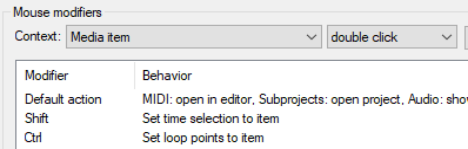
Some of the default modifiers and actions for this context are shown here (right). Of course, you can change any of these, as you wish.
Media Item Edge Left Drag
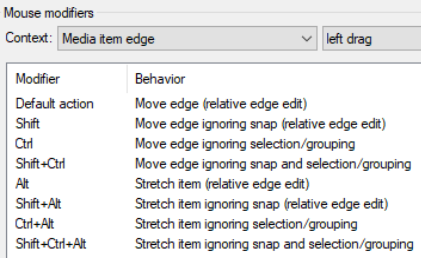
Shown here (below right) are some of the default mouse modifier settings that are used when clicking and dragging on the edge of any media item(s). Chapter 15 includes a step by step example showing how you can change any of these.
The Media Item Edge context pages also include a checkbox option to Limit edits to source media
content for unlooped media items
Media Item Bottom Half
There are separate mouse modifier contexts available for clicking on the bottom half of media items from those used when clicking on the top part. Any that modifier behavior that is not defined will automatically follow the behavior for the top half. Note: When the context Media item bottom half is selected, an option is displayed to Disable targeting of bottom part of media when take height is less than xx pixels. By default this is set to 44. You will need to change this if you want to use these context actions with media items less than 44 pixels high.