7.26 Snapping with Combined Snap/Grid Settings
You have already learnt (Chapter 5) how to define grid settings to determine if and how a grid is shown in arrange view.
Kind: concept (user-guide-section) Chapter: 7 Managing and Editing Media Items Source: REAPER User Guide v7.70
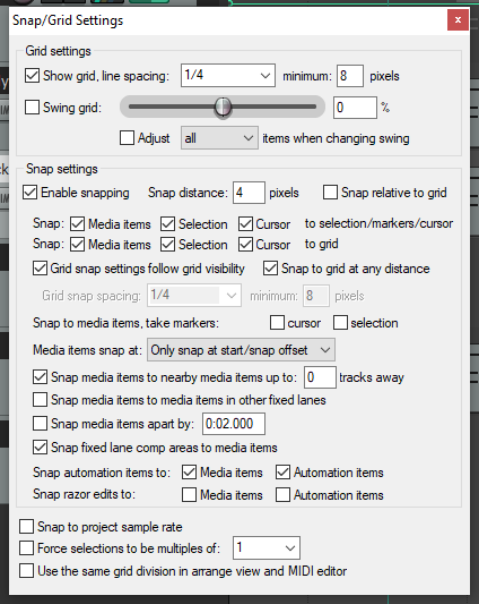
You have already learnt (Chapter 5) how to define grid settings to determine if and how a grid is shown in arrange view. The Snap/Grid Settings window (below) lets you ensure that various actions (including time or loop selection) and/or items are automatically snapped into position according to your settings. Options, Snap/Grid, Snap/Grid Settings open this dialog, or use Alt L, or right click on the toolbar Grid button . Alt S toggles snap on and off. Grid snapping can be applied in a number of ways, including: Swing grid: Option to use swing grid, adjusting all or only selected items when changing swing. There is also an option to Use the same grid division in arrange view and MIDI editor. Other options include Snap m****edia items, selection and/or cursor to selection/markers/ cursor and/or grid, and whether Grid snap settings follow grid visibility. Option to Snap media items to nearby media items and options to Snap automation items and/or Razor edits to automation items or media items. Snap to project sample rate: Items may be snapped to items samples, cursor, markers, loop points and envelope points to snap to samples.
Snap Distance settings enable you to be more flexible. For example, with grid spacing at 50 pixels and snap distance at 5 pixels, the option to Snap to grid at any distance off, snapping to grid will occur only within 5 pixels of any grid line. Otherwise, the cursor will be placed wherever the mouse is clicked. Also, snapping can be made Relative to Grid. Note: The snap behavior of ruler markers and regions will follow cursor snap settings.