9.20 Ruler Display Options
The Ruler Display command on the ruler right-click context menu lets you decide what is displayed on the ruler and how it is presented.
Kind: concept (user-guide-section) Chapter: 9 Tempo Based Production, Loops, Markers and Regions Source: REAPER User Guide v7.70
The Ruler Display command on the ruler right-click context menu lets you decide what is displayed on the ruler and how it is presented. Options pertaining specifically to regions and markers are discussed earlier in this chapter. These include:
Display tempo changes Display time signature changes
Display tempo/ time signature changes in separate lanes.
By default both region numbers and names are shown on the ruler when the region is contained within the visible area. Three toggle options to “tweak” these are:
Display region number even if region is named Display region number/name when region edge is not visible Display selected regions over unselected regions when overlapping
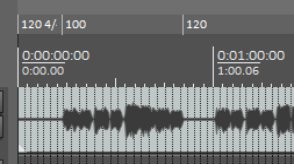
From this menu you can also open the Ruler Lane Manger. Grid lines can be shown or not (as you wish) for project/region markers and time signature markers: these can be enabled or disabled in your Appearance, Ruler Grid Preferences Here you can also choose whether to also divide arrange view vertically by a specified number of measures. The ruler height can be adjusted using any of these methods:
-
Left drag the mouse down or up on the boundary between the toolbar and the track panel.
-
If you have enabled the necessary Editing Behavior, Mouse preferences option, left drag the mouse down or up on the boundary between the ruler and arrange area.
-
Other options are to use one or more of the Actions List actions Ruler: Set to default height, Ruler: Set to maximum height and Ruler: Set to minimum height. These, like any other actions, can be assigned to keyboard shortcuts and/or toolbars if you wish. Some general tips for managing markers (project regions/markers and time signature/tempo markers) are:
-
Alt click on a marker to delete it.
-
Double-click on a marker to edit its settings.
-
Click and drag a marker left or right to move it.
Under Preferences, Editing Behavior, Mouse modifiers you will find various left drag actions that you can use (or change) when working with Project marker/region markers or Time signature/tempo change markers. Further detailed instructions specific to managing time signature/tempo markers can be found in the section Time Signature/Tempo Changes and Markers.