13.23 Quantizing MIDI Data
The term Quantize refers to a process of aligning a set of musical notes to a precise setting.
Kind: concept (user-guide-section) Chapter: 13 Working with MIDI Items Source: REAPER User Guide v7.70
The term Quantize refers to a process of aligning a set of musical notes to a precise setting. This results in notes being set on notes and on exact fractions of notes. When you quantize a group of MIDI notes, the program moves each note to the closest point on the timing grid.
The point of quantizing is to provide a more uniform timing of sounds. It is often applied to MIDI notes created by a musical keyboard or drum machine. Quantize is available by choosing the Edit, Quantize events command from the MIDI Editor menu. This causes the dialog box shown on the right to be displayed.
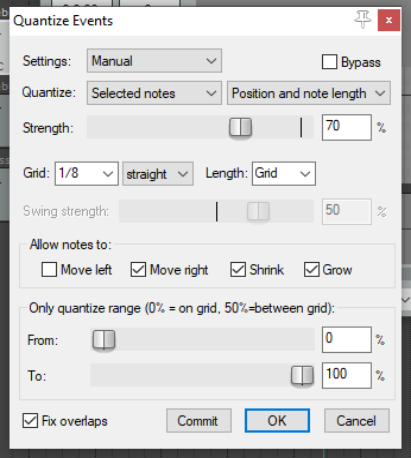
The first choice you have is between the Use Grid and Manual Settings option. We'll come to Use Grid shortly. Shown right is the dialog box interface that appears when the Manual option is selected. The various quantize parameters are explained below.
Notice the Bypass option (top right). Disabled it lets you see the result of different quantize parameter settings as you tweak them. Enable this until you are finished if you don't want this to happen. Toggle it to compare how your music sounds with and without quantizing applied.
All Notes, Selected Notes, All Events or Selected Events. The first Quantize drop down list allows you to quantize selected notes or events (not just notes) or the whole sequence (all notes or all events). This can come in handy if you just need to quantize a certain off section, or perhaps just a certain instrument, such as the hihats of a drum section. The second Quantize drop down list works in conjunction with whatever selection you make from the first. You can choose to have the quantizing of notes and/or events applied to the Position only, Position and Note End, Position and Note Length, Note End Only or Note Length Only. The Strength setting adjusts how strictly notes are quantized. The lower you set the strength, the less 'magnetism' the grid has to the midi notes. This introduces subtle imprecisions to the quantizing which can make the outcome seem less clinical. The Grid and Length values determine which units (measured as fractions of a note) are used for quantizing. These can be selected from the drop down lists or entered manually in their respective boxes. They act in conjunction with the Allow notes to options (see below). Grid type can be straight, triplet, dotted or swing. If swing is selected, you will also need to specify swing strength. Move left and Move right. If Quantize Position is enabled, these will ensure that notes are individually quantized to the start or end of the specified note fraction, whichever is nearest. Move left only will only quantize notes to the start, move right only will only quantize notes to the end. Shrink and Grow. These are applied if Quantize Length is enabled. REAPER will extend or shorten notes by moving the end position of each note. You can enable either or both of these options. The Only quantize range faders let you specify a percentage range for quantizing. 50% represents the midpoint between the grid lines. Values more than 50% are only really meaningful if “allow move right” or “allow move left” is disabled. The distance is measured from the grid line being quantized: normally it will select the closest line so that you will never be more than 50% away. Fix Overlaps can be enabled to stop notes from overlapping as a result of being quantized. When the Use Grid Setting is selected, the Quantize Events dialog box will be as shown on the right. From the Grid drop-down list (at the bottom of the MIDI Editor window, next to the transport bar), select a note length value (such as 1/32, 1/16 or 1/8) and then select an item from the grid spacing type list. This can be straight, triplet, dotted or swing. If you choose Swing a
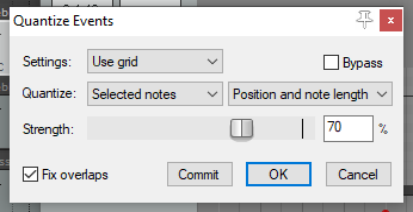
strength fader is displayed (see above). This is used to adjust the swing setting within a range of -100% to 100%, or you can enter a value directly into the Swing % edit box to its immediate right. You should also set a Notes value: left at Grid, this will take its value from whatever is chosen for the grid. Otherwise you may select any other required value from the drop down list. Used well, swing can result in a more musically pleasing output. In essence, you define a percentage delay to be applied on the upbeat. For example, if you apply swing to 1/4 notes then those which coincide with the 1/2 note divisions will be unaffected by the swing, those that fall between these divisions will be delayed by the amount specified. Small amounts of swing (even 5% or less) can help to prevent a part from sounding too rigid. Quantize is non-destructive – that is to say, the process can be reversed at any time. The various other commands on the Edit menu that are used with quantizing are:
Quantize notes using last settings

This bypasses the Quantize Events dialog box, making it easier for you to apply the same quantization settings to various disparate selections.
Quantize notes position to grid
This quantizes notes according to your grid settings.
Unquantize events
Removes quantization and returns the notes to their previous state.
Freeze quantization for events
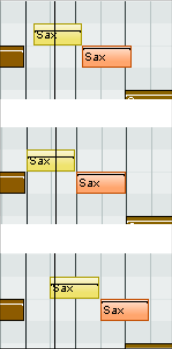
Freezes the quantization for all currently selected events. Shown above is an example. The top picture shows two unquantized notes selected. In the second picture they are quantized by moving them left. In the third picture, they are quantized by moving them to the right.
More quantize options are available in the MIDI Editor Action List, including actions to quantize note positions to specific divisions, ranging from 1/4 down to 1/64.