14.7 Notation Editor Specific Tasks and Functions
Before delving too deeply into the notation mode's editing capabilities it's worth pausing to take on board a few.
Kind: concept (user-guide-section) Chapter: 14 Music Notation and REAPER's Notation Editor Source: REAPER User Guide v7.70
Before delving too deeply into the notation mode's editing capabilities it's worth pausing to take on board a few
important points:
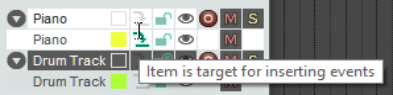
- If you have several MIDI items open together in a single notation editor you should display the track list
(Contents, Track list). This enables you to make sure that any item that you wish to work on is at least editable, and, for many actions, also selected as the target for inserting events. One simple way of doing this is to make it the only item visible at the time (below right).
- Within the MIDI editor track list, use Ctrl Click on any track name to close a track, or Alt Click to close
all other tracks.
-
Each MIDI item can have its own key signature, or no key signature. If no key signature is specified for an item, it will take its key signature from the previous item on the same track. If there is no previous item on the same track and no key signature defined, it will not have a key signature.
-
Only a relatively small number of the commands that are exclusive to musical notation view affect the actual MIDI notes themselves. These include deleting and inserting notes and setting tuplets. Other actions such as articulations, lyrics, notations, etc. will only affect what is drawn on the page, not the underlying notes themselves.
- You can right-click on the timeline (which displays the bar/measure numbers) to access the MIDI editor's general context menu.