3.42 Recording an Internet Audio Stream
You can use REAPER to record an audio stream from the internet.
Kind: concept (user-guide-section) Chapter: 3 Recording Audio and MIDI Source: REAPER User Guide v7.70
You can use REAPER to record an audio stream from the internet. Before doing so you should make sure that you are not in breach of any copyright restrictions. The exact method will depend on your hardware setup, including your sound card. Your sound card should include some sort of software for changing its settings. This may or may not have its own icon within the Windows Control Panel. If you are not sure how to access it, you can click on the Windows Start button, choose Run, then type sndvol32 –r and press Enter. In overview, these are the steps that you will need to perform.
- Access your sound cards control software and modify its settings to select (depending on the options
available) the required option. You should probably temporarily disable input from all other sources (Microphone, Line, etc). 2. Open your web browser and find the page containing the item that you wish to record. 3. Open REAPER, create a new file and add a track. 4. The next step may require a little experimentation. Depending on the equipment you are using, it might be
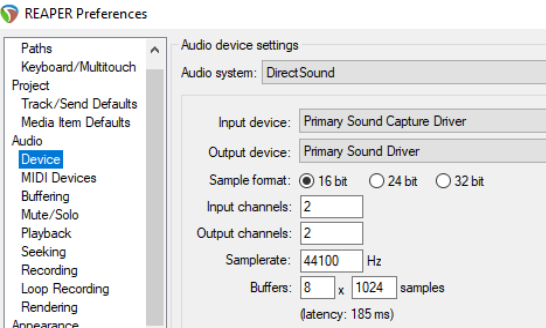
necessary to change your Options, Preferences, Audio, Devices settings to Direct Sound. An example is shown here. These settings may not be the best for your particular system. 5. Arm your track for recording: be sure to
select the correct input. 6. Press Ctrl R to start recording. In your
web browser, play the item that you wish to record. When finished, stop recording and save your work.
Note: Don’t forget when you have finished, to restore both your Sound Card Recording Control options and REAPER’s Audio Device Preferences to their previous settings.