3.38 Track Preferences for Recording
The REAPER Track Defaults settings includes a number of items that you can use to help make the recording process a little easier.
Kind: concept (user-guide-section) Chapter: 3 Recording Audio and MIDI Source: REAPER User Guide v7.70
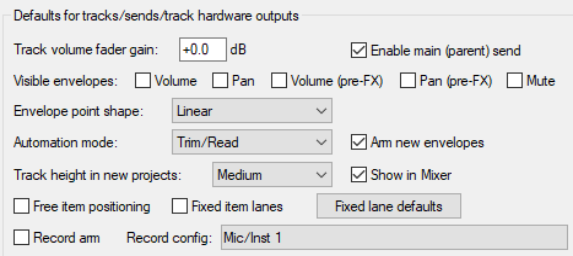
The REAPER Track Defaults settings includes a number of items that you can use to help make the recording process a little easier. These settings can be found on the Project, Track/Send Defaults page of the Options, Preferences window. Settings on this page include:
- The default volume fader gain.
- Whether output should be routed to the Main send.
- The default new track height.
- Whether to enable by default Free item positioning or Fixed item lanes. Unless you specifically need it to be otherwise, leave both these off.
- Whether to automatically arm new tracks for recording.
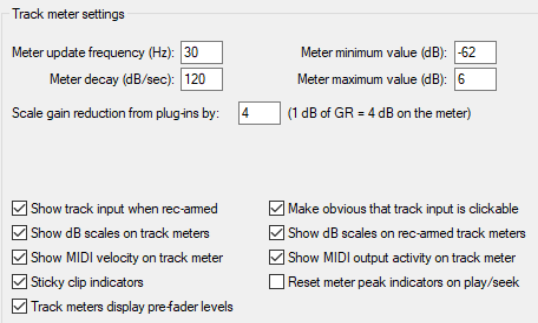
- A Record Config option to set defaults for the Record Arm context menu. Options include, to turn on by default Input Monitoring and specify default record input settings. Notice also that under Options, Preferences, Appearance, Track Meters there are settings which together determine how your track VU meters are presented. For example, you can choose whether or not to Show track input when record armed and to Make
obvious that track input is clickable.
Disabling this latter option may improve the clarity of the display on your VU meters. Enabling Show dB scales on record armed track meters and Sticky Clip Indicators helps you to monitor peak levels. MIDI users may wish to Show MIDI velocity on track VU and/or Show MIDI output activity on track VU. You can also specify whether to Reset peak indicators on play/seek. If enabled, the numeric peak indicators on track and master VU meters will cleared when playback is restarted or the play cursor moved. There is also a global option for Track meters display pre-fader levels. This setting is also available from REAPER’s Options menu.