3.21 Using Color Coded Takes
REAPER's Item, Item and take colors command (REAPER main menu) offers a variety of interesting ways that you can use color when working with takes and items (see right).
Kind: concept (user-guide-section) Chapter: 3 Recording Audio and MIDI Source: REAPER User Guide v7.70
REAPER's Item, Item and take colors command (REAPER main menu) offers a variety of interesting ways that you can use color when working with takes and items (see right). We'll look at this whole topic in detail in Chapter7, but for now notice the command Set active takes to one random color. Double-click in track panel to select the entire media item before giving this command.
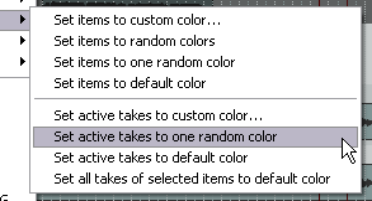
If after making your preferred working selection of takes for any track you double-click on that track in the Track Control Panel then all media items in that track will be selected.
Choosing Set active take to one random color will now produce an effect similar to that shown below.

The section that follows, along with most subsequent sections in this chapter, uses images that show an earlier default color theme. However, you should have no difficulty applying the instructions using the REAPER 7 default theme, or any other theme of your choice.