16.14 ReaLimit: The Brickwall Limiter
Reaper plug-ins are covered in Chapter 16, but especially interesting is ReaLimit, which serves as more than a simple track or master limiter.
Kind: concept (user-guide-section) Chapter: 16 REAPER Plug-ins in Action Source: REAPER User Guide v7.70
Reaper plug-ins are covered in Chapter 16, but especially interesting is ReaLimit, which serves as more than a simple track or master limiter. It can be used on individual tracks, but is more likely to be used on the track master and possibly folders and submixes.
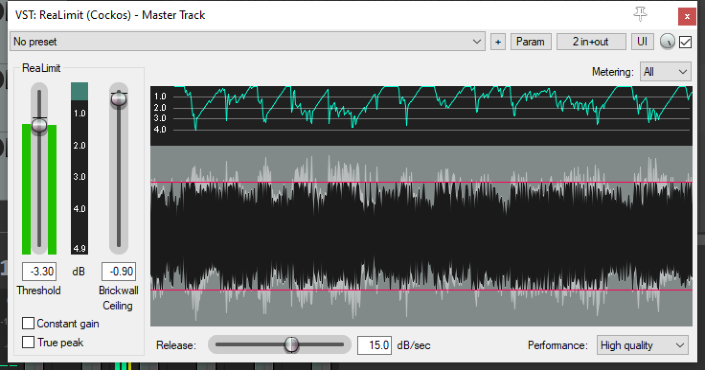
ReaLimit lets you specify a threshold and a ceiling: it then transfers sound from the threshold to the ceiling. Sound that comes in at the threshold goes out at the ceiling. No signal can be output above the ceiling: any input above the threshold is compressed. This usually results in a louder output. For example if the threshold is set to -6 dB and the ceiling is set to +0 dB, the overall signal is boosted by +6 dB to transfer the threshold to the ceiling. Input signal above -6 dB is compressed so that it peaks at exactly +0 dB.
ReaLimit’s visual interface provides live visual feedback in real time. For a menu of display toggle options rightclick over the graph. Your options are Freeze display when playback stops, Clear display when playback starts and Autoscroll display.
The Metering drop down allows you to choose which channel(s) is/are to be metered. The default is All. Note that channel selection here affects only the display, not the processing.
The In/Out right click menu lets you choose from stereo, multi-mono and multi-stereo. In stereo mode all master audio channels are compressed based on analysis of the loudness of all channels summed together. In multi-mono mode, each channel is analysed and compressed separately. In multi-stereo mode, each pair of channels is compressed independently as a stereo pair. Other features of the ReaLimit interface are: Constant gain: manages threshold/ceiling controls so that either will be moved relative to the other. True peak: whether to show true peak (a more accurate than peak). Double-clicking on either fader control will restore it to its default value. Release: determines how quickly the limiter stops working after the signal drops below the threshold. If it is overly long, you will hear audible pumping, while if it is too short, distortion artefacts may result. Performance: high quality (the default) or low latency. Note that ReaLimit’s application is not confined to your master. For example, it can be used with folders to help “glue” or pump up a submix, or on a per track basis with pre-mixed/bounced stems.
Track Gain Reduction Metering: Track gain reduction monitoring for plug-ins that measure gain reduction and report it to the host can be enabled in Preferences, Project, Track/Send Defaults. Display the Track meter display dropdown and enable Display gain reduction for plug-ins that support it. Track meter defaults will be applied to new tracks only, not to existing tracks on existing projects.