15.28 The Toolbar Docker
If you have several custom toolbars, the toolbar docker can be a useful means of accessing your various toolbars easily without creating a lot of screen clutter.
Kind: concept (user-guide-section) Chapter: 15 Customization: Actions, Mouse Modifiers, Menus and More Source: REAPER User Guide v7.70
If you have several custom toolbars, the toolbar docker can be a useful means of accessing your various toolbars easily without creating a lot of screen clutter. It uses a tabbed layout that makes it easy to switch between your various toolbars whilst only displaying the contents of one toolbar at a time. In addition to this, the toolbar docker can itself be docked in any of REAPER's main dockers. Shown below is an example where a user has created eight custom toolbars and made them all accessible from the toolbar docker:
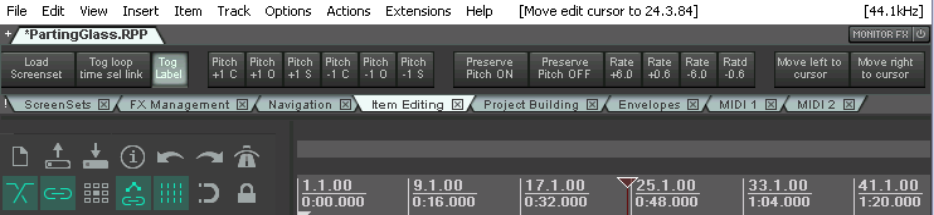
Display of the toolbar docker is toggled using the View, Toolbar docker command. A tip worth remembering is that toolbar layouts (tool positions) are by default saved with windows screensets. This makes it easier to switch between using and not using the toolbar docker, or using different toolbar selections in the toolbar docker at different times.
The following table summarizes the main features of the toolbar docker.
In order to do this ... … you need to do this.
Add an open toolbar to the toolbar docker
Right click over the toolbar background area, choose Position toolbar, In toolbar docker.
Remove a toolbar from the toolbar docker
In the toolbar docker, right click over the toolbar's name tab, choose Position toolbar then Close toolbar or one of the display options such as floating or at top of main window.
Replace one toolbar on the docker with another
In the toolbar docker, right click over the toolbar's name tab, choose Switch toolbar then select the required toolbar.
Display toolbar contents
In the toolbar docker, click on toolbar name tab.
Dock the toolbar docker
Click on the ! (exclamation mark) on the left end of the toolbar docker, then choose any one of the four attach docker position options bottom, top, left or right. In the example shown above, this has been docked at the top.
Undock the toolbar docker
Click on the ! (exclamation mark) on the left end of the docked toolbar docker, then deselect the option Attach Toolbar Docker to main window.