9.18 Quantizing Items
REAPER allows you to quantize your audio items.
Kind: concept (user-guide-section) Chapter: 9 Tempo Based Production, Loops, Markers and Regions Source: REAPER User Guide v7.70
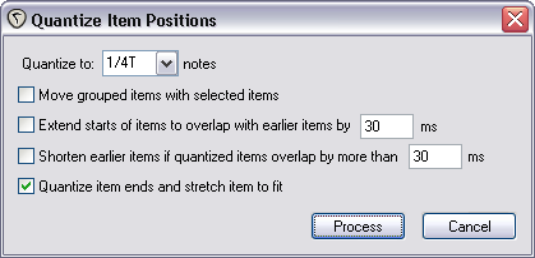
REAPER allows you to quantize your audio items. This essentially means lining them up according to the project tempo or time signature. You might have a situation in which you have copied and pasted a sample several times within a track (or across several tracks) and you need to ensure that they are correctly aligned. To ensure that all items are aligned to the beat, you simply do this:
- Double-click on the track in the Track Control Panel to select all the media items in the track. Alternatively, you could right click drag with your mouse to marquee or "lasso" them. 2. Right click over any of the items, then choose Item Processing then Quantize item positions to grid... This causes the Quantize Item Positions dialog box to be displayed. 3. Specify your required parameters, including the note length setting (1/8, 1/4, 1/2, 1, 2, etc.) and whether you want the items stretched to fit. An example is shown on the right. 4. Click on Process for the quantizing to be done. In the example above, the option to also quantize item ends and stretch to fit was enabled.