7.4 Auto Trim/Split Items
REAPER's action list contains literally hundreds of commands and actions, many of which are not shown on any menus.
Kind: concept (user-guide-section) Chapter: 7 Managing and Editing Media Items Source: REAPER User Guide v7.70
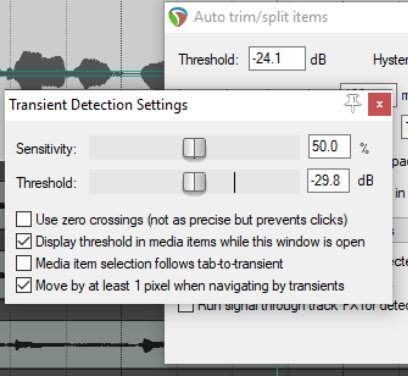
REAPER's action list contains literally hundreds of commands and actions, many of which are not shown on any menus. Actions are covered in more depth in Chapter 15. Two actions worth looking at here are Item: Auto trim/split items (remove silence) and
Transient detection sensitivity/threshold
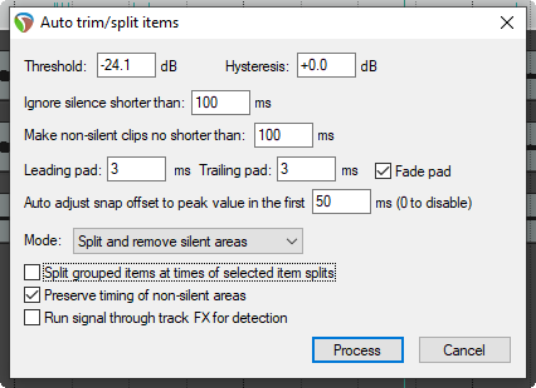
(adjust). These two can work together. Actions are run by first choosing the Actions, Show actions list command from the main menu, then selecting the required action and clicking Run. Note both that the Actions menu includes an option to Show recent actions on menu, and that within the Actions list you can use the Filter box to help find an action. Auto trim/split items is similar to using dynamic splitting to remove silence, except that it supplies you with some additional options. Selecting an item and running this action opens the dialog box shown here. Threshold and Hysteresis control the noise gate to determine the level below which passages are removed, and the degree of sensitivity applied – the same as with dynamic splitting. Similarly, the controls Ignore silence..., Make non-silent clips no shorter than..., Pad controls and Auto adjust snap... all work in the same way as their equivalent dynamic splitting options. The Mode drop-down has four options – Split and remove silent areas, Split and keep silent areas, Split only before non-silence and Split only before silence. If working with a set of grouped items, you have the option to Split grouped items at times of selected item splits. You can also set the gate to be applied post-FX by enabling the option Run signal through track FX for detection. This, for example, could be used to avoid chopping off any delay or reverb tails caused by track FX. If you also run the action Transient detection sensitivity/threshold a pair of faint horizontal lines will be displayed to give you visual feedback on your gate settings. Another option is Use zero crossings when splitting. This can prevent audio clicks on playback.