8.9 More Take Commands and Actions
The Items context menu includes six commands which create a new take from an existing item.
Kind: concept (user-guide-section) Chapter: 8 Managing, Comping and Editing Takes Source: REAPER User Guide v7.70
The Items context menu includes six commands which create a new take from an existing item. The first four of these all involve applying track effects to an existing media item: the first three create a new audio take and the fourth creates a new MIDI take. The table below summarizes these commands.
Command Explanation
Render items as new take
Renders the existing media item as a new take. Any MIDI items with take FX (such as VSTi) will be rendered as audio.
Command Explanation
Reverse items as new take
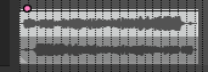
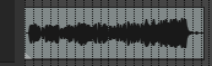
Adds a new take to the media item with the content reversed. Here's an example. Starting with this … we end up with this:
Apply track/take FX to items as new
take - creates a new stereo take for the selected item.
Apply track/take FX to items as new
take (mono output) – creates a new mono take for the selected item.
Apply track/take FX to items as new
take (multichannel output) – creates a new take for the selected item, with the same number of channels as are defined in the track's routing window.
Apply track/take FX to items as new
take (MIDI output) – creates a new MIDI take on selected MIDI item.
One use for these commands is to free up CPU if your system is becoming stressed. Consider an example of a track with some FX in its FX chain, say EQ and a compressor:
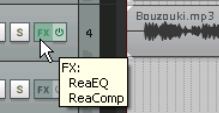
After applying track FX (mono output), we have a new take with the FX applied to it. The original FX chain can now be set to bypass:
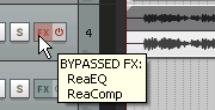
This reduces CPU overload, and opens up creative options- e.g. you can select Play all takes then use pan and volume envelopes to vary their placement and relative volume throughout the song.