13.27 Working with Multiple MID0I Tracks and/or Items (Overview)
From Arrange view by choosing the command Open in built-in MIDI editor (right click context menu) will make MIDI items available for editing.
Kind: concept (user-guide-section) Chapter: 13 Working with MIDI Items Source: REAPER User Guide v7.70
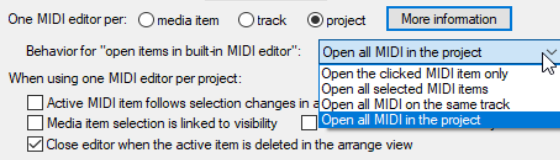
From Arrange view by choosing the command Open in built-in MIDI editor (right click context menu) will make MIDI items available for editing. This offers four mutually exclusive options – Open clicked MIDI item only, Open all selected MIDI items, Open all MIDI on same track, and Open all MIDI in project. You can set a default option in the Editing Preferences, MIDI Editor page of REAPER's preferences (see Chapter 22). Double-clicking on the item opens the MIDI Editor according to your preferences. For example, if you set your preference to one MIDI editor per media item, then each MIDI item you double-click on will open in a separate MIDI editor instance. If set to one MIDI editor per project then all MIDI items being opened in the MIDI editor when any single MIDI item is double-clicked: The double-clicked item will be the selected and active item. If All MIDI in the project is specified you should also specify whether to open the clicked MIDI item only, all selected MIDI items, all MIDI items on the same track, or all MIDI items in the project (see right). Within the MIDI Editor, your default preference settings can be overridden on a per project basis from the Contents menu. This will be discussed shortly. Tracks and items can be managed by displaying the Media Item Lane (second button on toolbar toggles) and the Track List (first button on toolbar toggles). Both these options are also available on the Contents menu. The illustration below shows an example of the MIDI Editor window opened with four MIDI tracks, some of which include several items. Both the Track List (right of window) and the Media Item Pane are displayed.
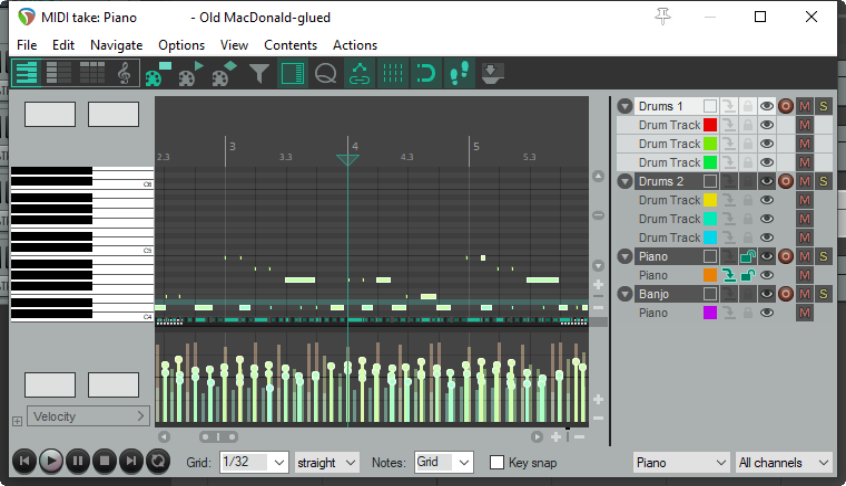
In the MIDI Editor Contents Track List each item is assigned three qualities – active status, editability status, and visibility status, These can be set as required to allow you to work with different items at different times.
Active means that the item can be used for inserting, copying, pasting notes, etc. Editable means that mouse edits (move, lengthen, etc.) and commands such as quantize, transpose and humanize can be performed on an item's notes. One and only one item at a time may be active, but as many items as you wish may at any time be visible and/or editable. Visible means the item and its notes are displayed in the MIDI editor window. Note that:
-
An item can be visible without having to be editable or active. One or more items may be visible.
-
An editable item will also be visible but need not be active. One or more items may be editable.
-
An active item will also be editable and visible. One and only one item is
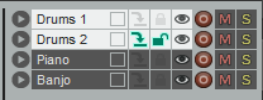
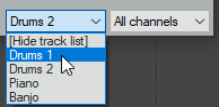
active at any time. Any track or combination of tracks can be made active using the “eye” column in the track list (see above right). A track can be made active by selecting it in the track list, or from the Contents menu, or using the drop down list near the end of the transport bar (see right). If the track contains only one MIDI item, that item will be made active. If it contains more than one item, all items will be visible and editable but only one item will be active.
The Filter Events window (accessed from the toolbar) allows you to select multiple channels for display and editing. If you select two or more channels in this window, the drop down channel list at the foot of the MIDI editor window will read “Multichannel” or “All channels”. Alternately, you can simply use the drop down channel list to select “All.” The MIDI column in the Track Manager (Chapter 12) can also be used to open items in/remove items from the MIDI Editor, and to show items in/hide items from the MIDI Editor track list. Tracks can also be selected to be shown in or hidden from the track list using the track list's context menu.