4.1 Introduction and Overview
To open the Media Explorer, use the View, Media Explorer command, or the shortcut Ctrl Alt X.
Kind: concept (user-guide-section) Chapter: 4 Managing Media: The Media Explorer Source: REAPER User Guide v7.70
To open the Media Explorer, use the View, Media Explorer command, or the shortcut Ctrl Alt X. Its interface is shown in the diagram below. Like many other windows, the Media Explorer is dockable. To do this, click the last button on the toolbar, or right click on the title bar and choose Dock media explorer in docker.
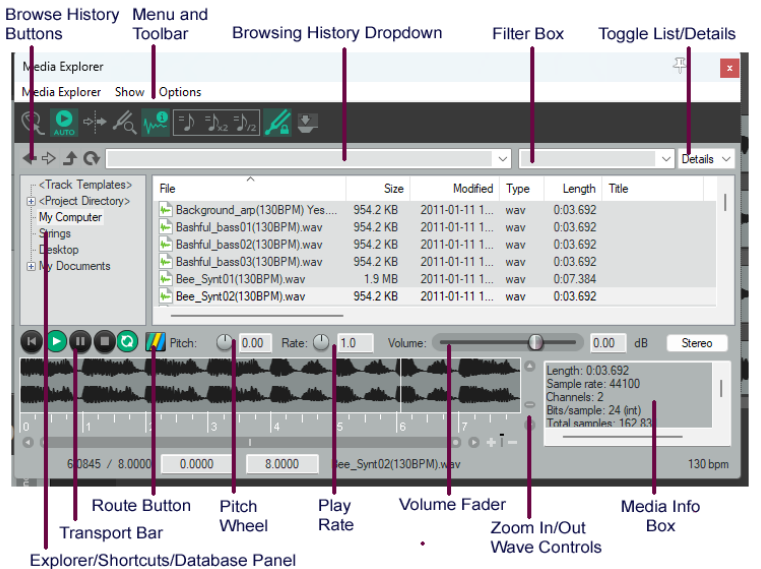
The Media Explorer can be used to preview and import items into your projects. It can assist you in organising and managing your media files. This includes creating and using databases (libraries), and adding or editing media file metadata. First, let’s look at the various elements of the Media Explorer window:
Toolbar buttons (L to R): Insert item in project, Auto play, Start on bar, Detect Pitch and Media information box toggle options: Tempo match options. Set tempo match off, or on, or to double, or to half. Preserve pitch toggle option: Dock media explorer toggle. Explorer/Shortcuts/Databases panel. Used to navigate your directories and files, rather like Windows Explorer or Mac Finder. you can add shortcuts for any folders and set up/manage databases. Browsing history buttons. Four buttons - previous, next, up a level and refresh – to use for browsing. Browsing history dropdown. This stores (and can display) a list of recently visited folders and databases. You can select from this list to access any of these folders. Filter box. Use this to type a text string to filter the displayed file list. List/Details (Windows only). Selects whether file details (size, date, etc.) or only file names are shown. Transport bar. Works on selected media item. Controls are Rewind/Home, Play, Pause, Stop & Repeat. Route button. Directs output to any audio output, or to play thru any track selected in Arrange View. Pitch control: Adjusts pitch of selected item on playback. Rate control: Adjusts play rate of selected item on playback. Volume control. Adjusts volume of playback of selected item. Preview window: Displays peaks (waveforms) of currently selected item, including ruler display. Preview scroll bars: Horizontal and vertical bars allow you to zoom in/out of the preview window. The action list includes an option to toggle this on/off. Although more commonly used for organising, finding and inserting media files, the media explorer can also be used to find, preview and open existing .RPP project files.