13.32 MIDI Editor Actions
REAPER’s Action list Editor lets you assign keyboard shortcuts to any command or action, or sequence of actions, including many not shown on the MIDI Editor menus.
Kind: concept (user-guide-section) Chapter: 13 Working with MIDI Items Source: REAPER User Guide v7.70
REAPER’s Action list Editor lets you assign keyboard shortcuts to any command or action, or sequence of actions, including many not shown on the MIDI Editor menus. Chapter 15 will show you how to do this, including adding actions to the MIDI Editor menus.
The Action list is displayed by choosing Show actions list from the Actions menu. It contains a whole load of assignable actions beyond those that are shown on REAPER’s menus. This means that you are able to create your own keyboard shortcuts for any of these actions, and even for sequences of actions.
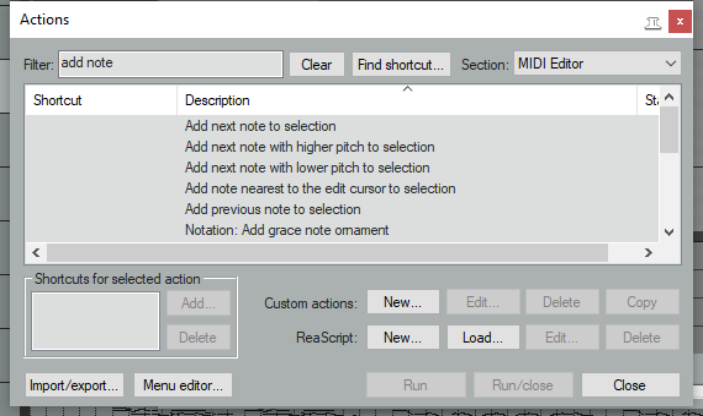
Notice (below right) that within the MIDI Editor Action List you can assign MIDI commands and actions to keystrokes to specify their behavior when you are using the MIDI Editor. Quite a few have already had keys assigned to them and you can assign your own keys to other actions.
Here’s a simple example. If in the Action List filter box you type (for example) add note then only those actions which included these characters will be displayed (see right). One of these is
Add next note to
selection. You can assign this action a shortcut. You’ll see in Chapter 15 that the Actions List Editor lets you do much more than this. For example, you can:
-
Build a sequence of actions that can all be executed with a single keystroke.
-
Add actions and custom actions to your MIDI Editor toolbar and/or the MIDI editor Actions menu, and/or any of REAPER's MIDI Editor menu commands (File, Edit, Navigate. Options, etc.)
-
REAPER's MIDI Editor commands (such as Edit -> Delete events, Edit → Insert note, Edit → Quantize, Navigate → Select next note, Options → Correct overlapping notes when editing, etc.) can all be found in the Action list. In addition there are many hundreds of actions, some very precise, which are not shown on the menus. The table that follows should help guide you thru many of these.
Category/Group
Examples of MIDI Editor assignable actions(not fully comprehensive)
Note/event selection
Select all notes with same value, note nearest to edit cursor, notes at mouse position, all muted notes. Add next/previous note to selection, Add note nearest edit cursor to selection. Select/unselect all CC events, Select/unselect all CC events in last clicked lane. Select all notes in time selection, Select all notes starting in time selection, Select all CC events in time selection (several variations).
Managing presets
Load/save CC/velocity lane presets.
Activate item/track
Activate next/next visible/previous/previous visible MIDI item. Activate next/next visible/previous/previous visible MIDI track (if multiple items/tracks are open).
CC lane management
Next/previous CC lane. Set CC lane to parameter. Set CC shape to xx. Set default cc shape to xx.
Channel display
Show only channel xx, Show only next/previous channel, Toggle channel xx, Color notes/CC by channel, Allow CC shape in sustain lane.
Grid actions
Set grid type (straight, dotted, triplet, swing). Adjust swing grid strength.
Navigation
Actions to navigate by channel, voice, pitch (all views) or staff (notation editor).
Remove duplicates
Separate actions to remove duplicate notes only/all duplicate events.
Category/Group
Examples of MIDI Editor assignable actions(not fully comprehensive)
Note coloring / inserting / editing/ manipulating / moving/ transposing
Color notes by velocity/channel/media item custom color/using colormap/by track custom color. Delete all notes/trailing notes less than [1/128 to 1/8] note in length. Lengthen/shorten one grid unit/one pixel. Make notes legato, preserving note start times/relative note spacing. Move notes down/up one octave/semitone (transpose) Move notes left/right one grid unit/one pixel. Invert selected/all notes, Reverse selected/all notes, Invert chord voicings. Edit note velocity +/- 01/10. Set note length to grid size/double/half, Set length for next inserted note to grid. Trim left/right edge of notes to edit cursor. Insert note [1/128 to 1] note length. Set note length to [1/128 to 1] Set note ends to start of next note. Set note position to edit cursor. Split notes on grid. Copy/cut/duplicate notes within time selection, Fit notes to time selection. Paste events into active media item regardless of source media item (allows items to be copied from a selection of media items into a single media item.).
Loop/time selection
Loop point: set start/end point. Remove loop point. Double/halve loop length. Set time selection to selected notes, Remove (unselect) time selection, Remove (unselect) time/loop point selection. Move cursor to start/end of loop/time selection.
Cursor movement
Cursor advance [1/128 to 1]. Cursor advance [1/32T to 1/4T]. Move cursor left/right one measure, To start/end of current measure. Move edit cursor left/right by grid.
Lyric events
Align lyric events with notes. Import lyrics for selected noted from file. Insert/edit text/lyric event at first selected note. Select next/previous lyric event. Shift lyric events backward/forward one note.
Mouse modifiers
Actions are available to set mouse modifier behavior within the MIDI Editor for each of the categories CC event left drag, CC lane left drag, MIDI editor right drag, note edge left drag, note left click, note left drag, piano roll left click, piano roll left drag, ruler left click and ruler left drag. The list of actions is exhaustive.
Playback
Chase MIDI note-on/CC/PC/pitch in project playback (toggle).
Project sync actions
Timebase: sync to arrange view – syncs midi editor timebase to arrange view. Timebase: toggle sync to arrange view – sets sync on/off.
Toolbar management
Options in MIDI Actions List to open custom MIDI toolbars 1-16.