14.8 Working with Notes and Note Selections
A number of commands specific to musical notation view are available from this view's own context menu.
Kind: concept (user-guide-section) Chapter: 14 Music Notation and REAPER's Notation Editor Source: REAPER User Guide v7.70
A number of commands specific to musical notation view are available from this view's own context menu. Select a note (or series of notes) and right-click to display this menu. It is well beyond the scope of this User Guide to attempt to teach music theory. Nevertheless, for those that need to learn more, the information in the table below might serve as a starting point by introducing you to some of these terms. These comments are offered for information and guidance only, and are not intended to be comprehensive or water-tight definitions.
Note Option... Comments ...
Accidentals
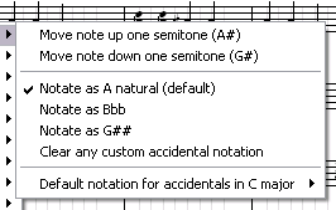
Accidentals (sharps and flats) are an instruction to raise or lower the pitch of a note by half a step. Select the note, rightclick and select Accidental from the menu. You can then make your choice from the flyout menu. Different values will, of course, be available for different notes. The last of the options on this menu,
Default notation for accidentals in C
major, can be set to Sharp or Flat. The actions to move the note do actually move the note, not just change the display. If a note can be ambiguously written in either of two ways (for example, C sharp or D flat), the menu will offer a choice of which to display. This will not affect the actual MIDI note, only the notation.
Stem
This command enables you to over-ride the default stem direction for a note or note selection. Options are Stem up, Stem down, or restore Default stem direction.
Lyrics
Inserts lyric at selected note position. Explained in previous table.
Note Option... Comments ...
Beam
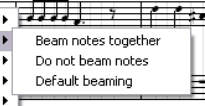
Right-click on a selected note and choose Beam, then Beam notes together to start beaming on any note. Do not beam notes can be used to remove beaming. This allows you to break up sets of beamed notes to better display the intended rhythm. For example, if four 1/16 notes are beamed together but intended to be phrased as 1+3 then you might wish to start a new beam on the second note. The option Default beaming restores a note selection to the default.
Dot/Tie
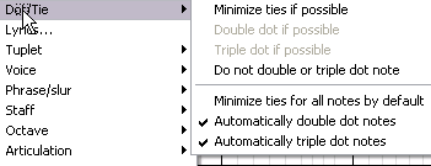
This menu option can be used with a note selection. Right-click over the selection, then you can choose Dot/Tie and Minimize ties if possible to minimize the number of ties in a note selection. There is also an option to Minimize ties for all notes by default. Options also exist to Double dot if possible, Triple dot if possible and Do not double or triple dot note.
Tuplet
For detailed information about tuplets, see the preceding table General Editing