15.2 REAPER Actions Essentials
The Actions List and its editor.
Kind: concept (user-guide-section) Chapter: 15 Customization: Actions, Mouse Modifiers, Menus and More Source: REAPER User Guide v7.70
The Actions List and its editor
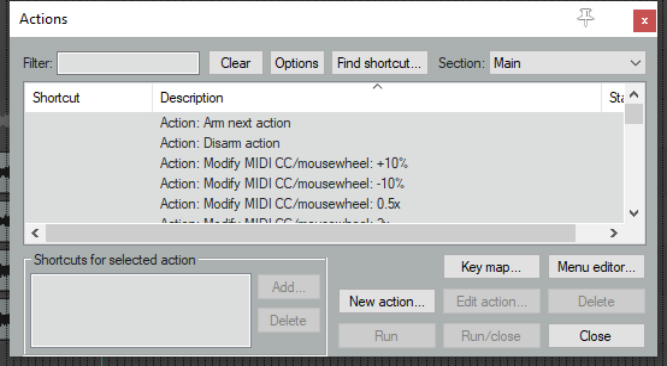
(shown right) are opened by choosing the Actions command from REAPER's main menu, then Show action list..., or simply by pressing the ? Key.
Before we look inside REAPER's
Action List Editor to explore the world of shortcut keys, custom actions, control surface assignments and more, it's worth taking stock of a couple of useful resources that are available to you.
Help, Key bindings and
mouse modifiers (from REAPER’s main menu) opens your default web browser with a list of all current keyboard shortcut and mouse modifiers. This list is searchable and can be printed. Choose the Action list as HTML command from REAPER's Help menu to open your default web browser with
a list of all of REAPER's many available actions, any of which can be assigned to a keyboard shortcut and/or combined with other actions into your own custom actions. This list is also searchable and may be printed. This information is also contained within the Action List Editor itself, and this editor is searchable. ReaScript documentation. Just what ReaScript is will be explained
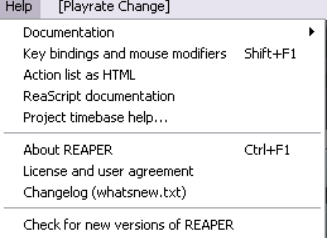
later in this chapter. In brief, ReaScript items can be used to add additional functionality to REAPER. A number of sample scripts can be found at, and downloaded from, stash.reaper.fm/tag/Scripts. They need to be placed inside the Scripts sub-folder within your REAPER applications data directory. They can then be selected and executed within REAPER's Actions list editor by clicking on the Reascript Load button.