2.10 Track FX Basics
FX can be used with REAPER, for purposes such as EQ, compression, chorus, reverb and more.
Kind: concept (user-guide-section) Chapter: 2 REAPER Project Basics Source: REAPER User Guide v7.70
FX can be used with REAPER, for purposes such as EQ, compression, chorus, reverb and more. Track FX (JS, VST, VST3 and DX, VSTi , VST3i and DXi, and, for Mac users, AU) can be added to tracks and media items from the FX browser or by directly inserting them into the track or item FX Chain. Media item FX are explained in Chapter 6. Many FX plug-ins are supplied with REAPER, including Jesusonic and Cockos effects.
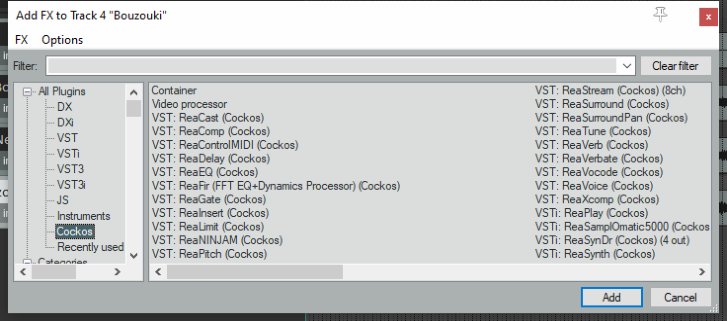
We'll examine many of these later in this User Guide, especially in Chapters 6 and 16. For now, let's just focus on some general aspects of how audio FX fit in to the REAPER scheme of things. To access any of these FX, simply follow these procedures:
FX can be added to any track or item FX directly from the main FX Browser window. Each track and item also has its own FX window: these are most suitable for managing the individual FX parameters and the FX chain itself, although FX can also be added to individual track and item FX from within this window.
From the FX browser… You can do this …
Open the FX Browser
Choose View, FX Browser command or press Shift F.
Add FX to a track or item
Drag and drop FX from FX Browser to track panel or mixer panel or item.
Add FX with preset
Right click on FX name, choose Add with preset from menu.
Add several FX to a track or item
Use Ctrl left click to build selection. Drag and drop selection from FX Browser window to track panel or mixer panel or item.
Add one or more FX to a number of tracks or items
Select the tracks (track panel) or items (arrange view). Select the FX. Right click over any selected FX, choose Add to selected tracks or Add to active takes of selected items.
Rename the FX
Right click on FX name, choose Rename FX… from menu.
Create keyboard shortcut
Right click on FX name, choose Create shortcut … from menu. This shortcut can now be used to insert that FX into any track or media item.
Set default preset for FX
Right-click on FX name, choose Set default preset and select a preset from the list.
Insert previously saved FX chain in a track or item.
In FX Browser, select Chains in left hand panel. Drag and drop required chain to track panel or mixer panel or item.
From the FX browser… You can do this …
Create new track and add FX
Drag FX from FX browser window to empty area of track panel.
Dock FX Browser
Right click on title bar, choose Dock FX browser in docker To undock, right-click on browser tab and deselect Dock FX browser in docker.
Advanced technical default options
More advanced technical options are documented in the section
Advanced plug-in defaults**.**
From a track FX window... You can do this …
Open a track’s FX window
Click on track’s FX button. If no FX chain already exists for this track, click on Add button.
Add FX to track FX chain
Double-click on the required FX in FX browser window.
Add several FX
Use Ctrl click to build selection, then click on FX browser Add button.
Set FX to bypass (toggle)
In the FX chain, click on the FX name, press Ctrl B.
Set FX to offline (toggle)
In the FX chain, click on the FX name, press Ctrl Alt B. Unlike bypassed FX, offline FX will consume no CPU.
Note: Any plug-in added to an FX chain will then be displayed in the FX Browser's Recently Used FX folder.