7.29 The Nudge/Set Items Window
The Nudge/set items window is opened from a media item’s right-click menu or from REAPER’s Edit menu.
Kind: concept (user-guide-section) Chapter: 7 Managing and Editing Media Items Source: REAPER User Guide v7.70
The Nudge/set items window is opened from a media item’s right-click menu or from REAPER’s Edit menu. In the Actions editor you can assign this action to shortcut keys, and/or use the Menus/Toolbars editor to assign it to a toolbar. Both the Actions List editor and the Customize Menus/Toolbars editor are covered in Chapter 15. This window stays open until closed. You can select any item (or a number of items) to be nudged or moved to a set position. The behavior respects your other settings (e.g. snap and whether the item is loop enabled). The main options and parameters in this window are described in the table below, moving from left to right.
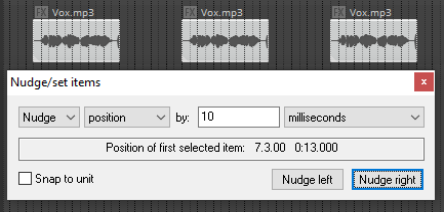
Item Explanation
Action
Choose Nudge or Set to determine how REAPER will interpret the Unit information. Nudge causes the item to be moved according to the unit specified by the amount specified. In the example above, the item is moved 10 ms left or right (depending on which Nudge button is clicked). Set causes the item to be moved to the position specified.
Unit Value
Determines the number of units by which the item will be nudged. This information needs to be interpreted together with the Unit Type selection. In the example shown above, the unit type is milliseconds and the unit value is 10.
Unit Type
Options include milliseconds, seconds, grid units, measures/beats, samples, frames, pixels, item lengths, item selections and notes. If notes is selected, an additional drop down list offering various fractions of a note (from 1/256 to whole) is also displayed.
Determines exactly what will be nudged or set. Your choices are:
Nudge/Set Definition
Position
Whole item: the whole item will be physically moved
Left Trim
The item is trimmed from the left
Left Edge/Right Edge
The left edge or right edge is moved
Contents
The item itself remains static, its contents are moved within it
Duplicate
Creates duplicate item(s)
Edit Cursor
Moves edit cursor Whether the movement is left or right will depend on which button is clicked. If Duplicate and Nudge are selected, you will be able to specify number of copies.
Snap to Unit
Whether to enable or disable snapping.
Nudge Left Nudge Right
These buttons are displayed only if Nudge is selected. They determine whether to nudge the item(s) to the left or to the right.
Get Cursor
These buttons are only displayed when Set is selected. Get Cursor returns the current cursor position and writes it in the “to:” box. Apply Move moves the item according to the various options and settings, including the position specified in the “to:” box.
Apply Move