5.11 Headphone Monitoring and Headphone Mixing
Most would agree that when mixing it is better to use the monitors (speakers) in your studio or control room.
Kind: concept (user-guide-section) Chapter: 5 Project Arrangement Basics Source: REAPER User Guide v7.70
Most would agree that when mixing it is better to use the monitors (speakers) in your studio or control room. However, you may wish also to use headphones from time to time, perhaps for those occasions when you need to focus in detail on a particular track or media item. Assuming that you have a PCI sound card or other audio device (Firewire or USB) which supports multiple outputs, here’s a neat little trick.
-
Assign Output Aliases to your outputs, as explained in Chapter 1. 2. Display the Routing Matrix. Assign the output from the Master to the Control Room speakers. 3. Put on your headphones.
-
As you play the song, click on the
appropriate cells on the routing matrix to also direct any particular track on which you wish to focus to your headphones. You can change from track to track, or add as many or as few as you want at any time.
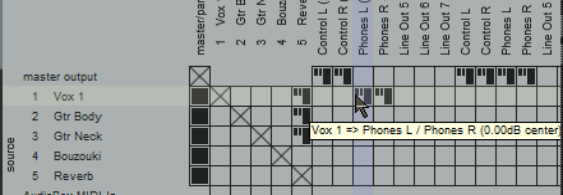
In the example above, the entire mix (from the Master) is being heard through the Main Speakers, but only track 1 Vox is also being heard through the headphones. Remember you can right click over this grid cell to display the controls for this send (such as Volume). This can be useful when a musician who wants to particularly hear only some tracks when recording.
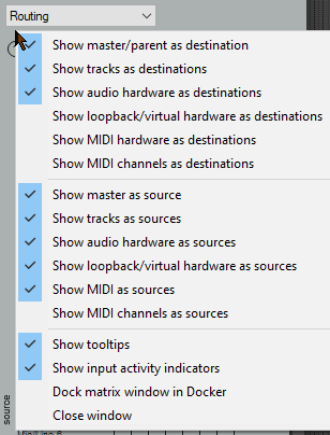
When you are mixing down, you might not wish to see all of the available routing information available – it can get quite complex. You might wish to keep the routing matrix display as simple as possible for the job in hand. For example, if you are focussed purely on mixing, you might not need to see all the various input assignments.
Right clicking over the background area lets you customize its display. In the example shown here, by unchecking Show audio hardware as sources we have simplified the display. If you have installed ReaRoute, consider also disabling the options to Show ReaRoute as destinations and Show ReaRoute as sources.