3.33 Recording With a Virtual Instrument
To use a virtual instrument (such as a VSTi or DXi plug-in) for recording a MIDI track, you can use the main menu Insert, Insert virtual instrument on new track… command.
Kind: concept (user-guide-section) Chapter: 3 Recording Audio and MIDI Source: REAPER User Guide v7.70
To use a virtual instrument (such as a VSTi or DXi plug-in) for recording a MIDI track, you can use the main menu Insert, Insert virtual instrument on new track… command. You will then be presented with a selection of all the virtual instruments that you have installed on your system. Double-click on the required item. The track will be created, armed and named and the instrument displayed. If you prefer, you can instead drag and drop the instrument from an open FX Browser window to an empty area of the track control panel. The example shown here is for ReaSynDr, which requires four outputs. If the item selected (like this one) requires multiple outputs then REAPER will create the initial track and prompt to ask you if you would like the other required tracks to be automatically built. If you select Yes the entire output chain will be
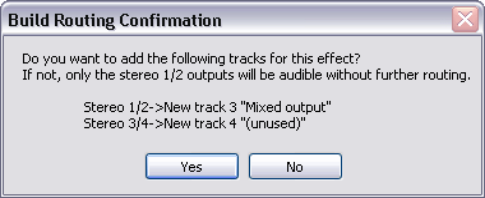
built for you. What exactly this produces will, of course, depend upon which Virtual Instrument you have selected.
Monitoring an External Synthesizer
If you are working with an external hardware synthesizer then it is likely that at times you may wish to monitor its output in REAPER. This topic is covered in Chapter 13, Manipulating and Editing MIDI Items.