15.7 Removing a Shortcut or Changing a Key Assignment
Removing an existing shortcut is easy.
Kind: concept (user-guide-section) Chapter: 15 Customization: Actions, Mouse Modifiers, Menus and More Source: REAPER User Guide v7.70
Removing an existing shortcut is easy. For example, you might like to remove the shortcut that you just assigned to the action View: Attach/unattach Docker to/from main window. Follow this sequence:
- In the Action List, find and
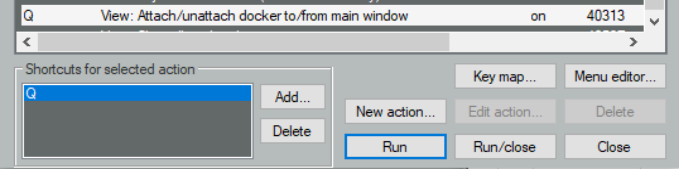
select the action from which you wish to remove the shortcut. The current shortcut(s) will be displayed just below the list. ( right). 2. Click on the shortcut
shown in the window (in this example, Q). 3. Click on the Delete button. The shortcut will be deleted.
The procedure for changing an existing key assignment combines the two techniques of creating a new shortcut and removing an existing one. Let's take as an example assigning the Up and Down arrow keys to the actions Track: Go to previous track and Track: Go to next track, instead of Ctrl Alt Up and Ctrl Alt Down (the default assignments).
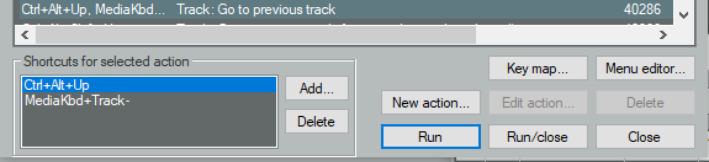
- Find and select the
action Track: Go to previous track. 2. In the displayed list of
shortcuts, select Ctrl Alt Up ( right). 3. Click on Delete to
delete this shortcut. 4. Click on Add... to display the Keyboard or MIDI Input
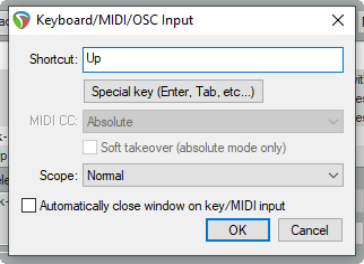
window. 5. Press the Up arrow (see right), then click on OK. 6. When asked if you wish to override the current assignment to
View: Zoom in horizontal, choose OK. You will still be able to use the Plus key to zoom in horizontal. 7. Use the same techniques as at steps as at steps 1. to 6. to
change the shortcut key for Track: Go to next track from Ctrl Alt Down to just Down.