The JS WigWare Multi-Channel Peak VU Meter
Parameter values are set by left clicking and dragging up or down over it.
Kind: concept (effect-summary) Source: REAPER Effects Summary Guide v3.04
Parameter values are set by left clicking and dragging up or down over it. Any parameter can be reset to its default value by double-clicking on it.
Meter range
The dB range to be used for the vertical display meters. This can be set anywhere between -2dB and – 150 dB. Drag all the way down to turn meter display off altogether.
RMS
The unit of measurement to be used for calculating RMS. The valid range is from 0.02 ms up to 500 ms.
Range
The dB range to be used for the graphical display. Valid range is from -6.0 dB to -100.0 dB. Drag up/down on the graphical display itself.
Length
The length of time displayed at any one time in the graphical display. Valid range is 0.13 ms to 3.0 seconds.
Hold
Click and hold for a second then drag down to the graph and release to “freeze” display. Drag up/down to change to dB range shown in the frozen or left/right to go back or forward in time. Click again on “hold” to unfreeze.
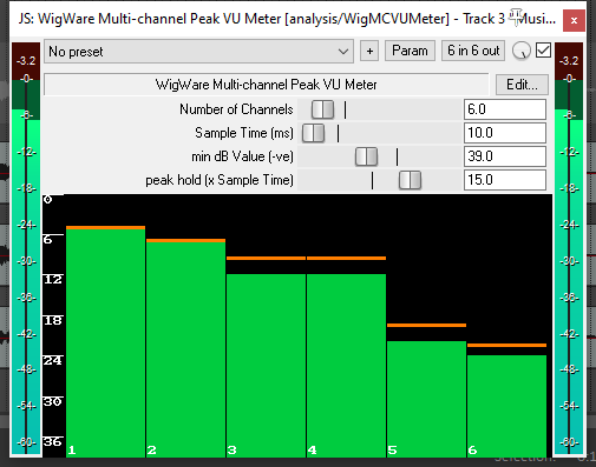
Although not a Cockos plug-in, it’s worth taking a quick look at the JS WigWare Multi-Chanel Peak VU meter, as it gives you a simple view of a comparison between up to 16 different channels in a track. In the example shown here, the track has six channels. Its controls are simple and selfexplanatory. Although simple, it can be quite useful if you are working with multi-channel tracks.