ReaXcomp
MIDI channel Selects the channel(s) used for the MIDI material (0 = all).
Kind: concept (effect-summary) Source: REAPER Effects Summary Guide v3.04
MIDI channel Selects the channel(s) used for the MIDI material (0 = all).
Center note Selects center note (in semitones).
Pitch shift Algorithm Selects the pitch-shift algorithm to be used – Sound Touch, Dirac, Simple windowed, elastique Pro, elastique Efficient, elastique SOLO, Rubber Band Library or Project Default. Project default is specified in project settings.
Pitch shift Parameter Selects parameter to fine-tune the behavior of the selected algorithm. If Project Default is selected, this option is not available, but will be determined by the Project Settings.
Stereo A toggle to enable/disable stereo output.
ReaXcomp is a multiband compressor. Broadly speaking, its controls are similar to those found on ReaComp, except that you are able to split the frequency spectrum into several bands and compress each band individually. The example below shows a compressor with four bands. Another feature of ReaComp is that you can make adjustments to some of its parameters by using your mouse on the plug-in's graph. These options are explained below.
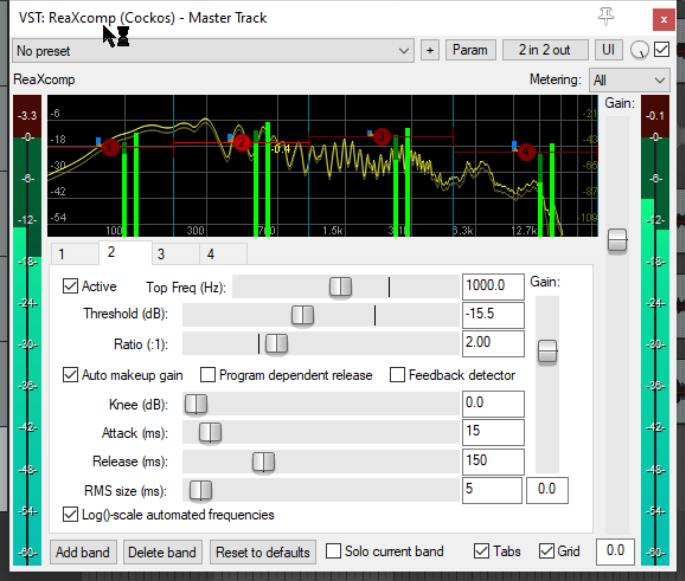
Numbered tabs (shown as 1 to 4 above) Selects a band and displays that band's settings. In the example shown above, band 2 is selected.
Active A toggle to enable or disable the current band.
Top Frequency Sets the highest frequency of this band. The lowest frequency is determined by the top frequency of the previous band. In the case of band 1, the bottom frequency is 0. A band's top frequency can also be adjusted by dragging left or right the thin vertical blue line that separates bands on the graph.
Threshold Sets the volume level at which this band of the compressor will be engaged. Note that this is the threshold for the band, not for the audio signal as a whole. A band's threshold can also be adjusted directly on the graph, by dragging its band number up or down.
Ratio This determines the amount of compression applied to the band. For example, at 2:1, for every 2 decibels by which the volume of the band on the dry signal exceeds the threshold, the processed signal will be increased by only 1 decibel. Setting a ratio below zero will make the band act as an expander rather than a compressor. Auto make up gain A toggle which when enabled will automatically increase the gain on this band when its volume falls below the threshold.
Program dependent release A toggle which when enabled ensures that attack and release times are modifiedaccording to the frequency and amplitude of the audio signal.
Feedback detector A toggle which when enabled will prevent feedback.
Knee The knee size determines the range of volume (rather than a specified amount of time) which the compressor band will use in applying the compression ratio. For example, with a ratio of 4:1 and a knee setting of 0 dB, the full 4:1 ratio will be applied as soon as the threshold is exceeded. With a knee size of 10 dB, the ratio will be gradually increased from 1:1 at the threshold level, eventually reaching the full 4:1 when the volume exceeds the threshold by a full 10 dB.
Attack Determines how quickly the compressor band responds when the threshold level is reached or exceeded. A zero setting means the full compression will be applied immediately and suddenly: the greater the number of milliseconds specified, the more gradual the response.
Release Determines how quickly the compressor band responds when the volume drops below the threshold level. A zero setting means that the compression will be fully and instantly released. A higher setting ensures that the release will be more gradual.
RMS Size RMS (root mean square) is calculated according to a formula based on the square roots of a moving series of values. Think of it as being conceptually similar to a moving average. If RMS is set above 0 ms, the higher the setting the more extreme peaks and troughs in the audio signal will be smoothed out in determining the compression that is applied.
Log-scale automated frequencies Toggles this option on and off. When enabled, it produces a more useable scale for frequency automation envelopes, so that the lower frequencies are allocated a larger area of the automation envelope area. This is achieved by using a logarithmic scale rather than a linear scale for the frequency envelope.
Add band Adds a new band (tab).
Delete band Deletes the current band (tab). You must leave at least one band.
Reset to defaults Restores this instance of ReaXcomp to the plug-in's default settings.
Solo current band Disables all bands except the current one.
Tabs Toggles on and off display of tabs and their parameter controls.
Grid Toggles on and off display of grid lines on the graph.
Gain Raises or lowers the volume of the plug-ins overall output (not individual bands).