ReaEQ
ReaEQ is a parametric equalizer which by default contains four bands.
Kind: concept (effect-summary) Source: REAPER Effects Summary Guide v3.04
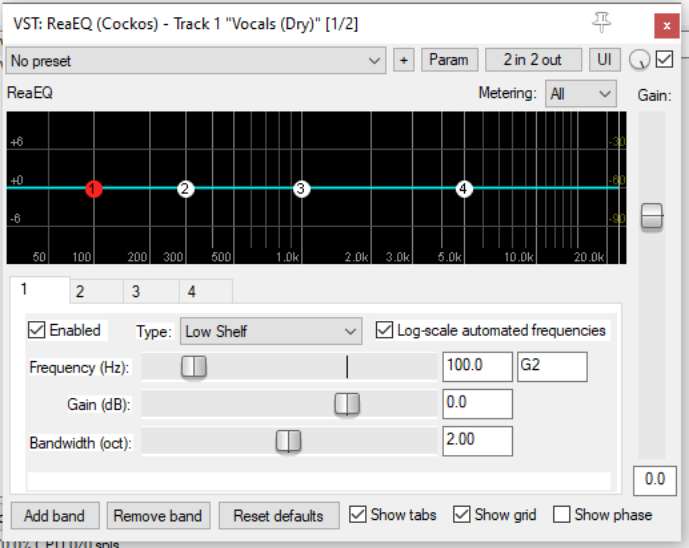
ReaEQ is a parametric equalizer which by default contains four bands. However, you can add more bands or remove any existing bands if you wish to do so. It is used to make adjustments to the frequency spectrum of a track or media item. By cutting or boosting any required frequency or range of frequencies you are able to change some of the characteristics of an audio signal. This can be used to compensate for existing deficiencies (such as too much bass or top end, or to remove noise, hum or rumbling), or to enhance a track's sound (such as by adding more presence or warmth). As with many effects, use ReaEQ gently, especially at first. Applying equalization too aggressively can make a track or media item sound worse rather than better.
Numbered tabs In above example, there are four bands, numbered 1 to 4. Click on any numbered tab to select that EQ band.
Enabled Toggles the currently selected band between enabled and bypass state.
Type (drop down list): Determines the type of band used for the selected EQ band. Main options are:
Low shelf: Applies gain or attenuation only to those frequencies below the selected frequency. High shelf. Applies gain or attenuation only to those frequencies above the selected frequency. Band. Applies gain or attenuation across a frequency range and centered on a selected frequency. The width or narrowness of the range is determined by the bandwidth setting. Low pass. Allows frequencies below the specified frequency to pass thru, but tapering down to eventually eliminate frequencies above that specified. High pass. Allows frequencies above the specified frequency to pass thru, but tapering down to eventually eliminate frequencies below that specified. All pass. Allows all frequencies to pass, but changes the phase relationship between the various frequencies. Notch. Allows thru all frequencies except a range centered on the selected frequency. The width of the range is determined by the bandwidth setting. Band Pass. Cuts everything above and below a range centered on the selected frequency. The width of the range is determined by the bandwidth setting. Parallel Band Pass. Parallel band passes are run separately and then summed: the remaining filters run in series after that.
Log-scale automated frequencies Toggles this option on and off. When enabled, it produces a more useable scale for frequency automation envelopes, so that the lower frequencies are allocated a larger area of the automation envelope area. This is achieved by using a logarithmic scale rather than a linear scale for the frequency envelope.
Frequency (Hz) Sets the frequency for this band that is to be attenuated or to which gain is to be added. Its value is displayed to the right of the fader both in Hz and as a MIDI note value. This can also be set by clicking and dragging the point on the graph.
Gain (dB) Determines the amount gain or attenuation (expressed in decibels) that is to be applied to this band. This can also be set by clicking and dragging the point on the graph.
Bandwidth (oct) Determines how large (wide) or small (narrow) will be the frequency range to which the attenuation or gain will be applied. Measured in octaves.
Add band Adds another band (page) to the ReaEQ settings.
Remove band Deletes the currently selected band (settings) page.
Reset defaults Restores this ReaEQ instance to its default settings.
Show tabs Toggles between display of the ReaEQ tabs and graph only.
Show grid Toggles display of the graph grid on and off.
Show phase Toggles this option on and off. When enabled, the graph will illustrate the extent of phase-shift caused by your EQ settings.
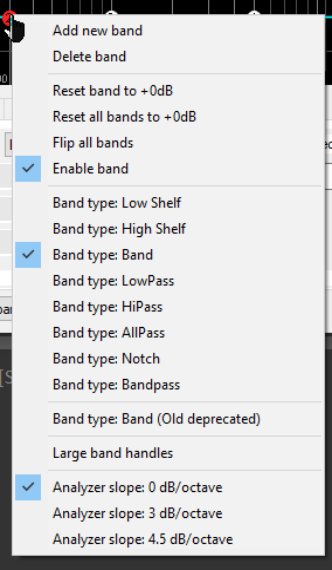
Context menu Right-click over any of the numbered points on the graph to display a context menu of band settings (shown right). Most commands duplicate functions already explained, such as changing band type, or adding a band. Of special interest is the option Flip all bands, which changes attenuated frequencies to gain, and vice versa.
Gain The vertical Gain fader on the right raises or lowers the volume of the overall wet output audio signal.
Note: REAPER's Action List includes the assignable action Track: Insert ReaEQ (track EQ) which can be used to insert an instance of ReaEQ in any track.