Sidechaining
Sidechaining allows you to use the audio signal of one track to control the behavior of a plug-in such as a compressor or noise gate on a different track.
Kind: how-to Source: REAPER Effects Summary Guide v3.04
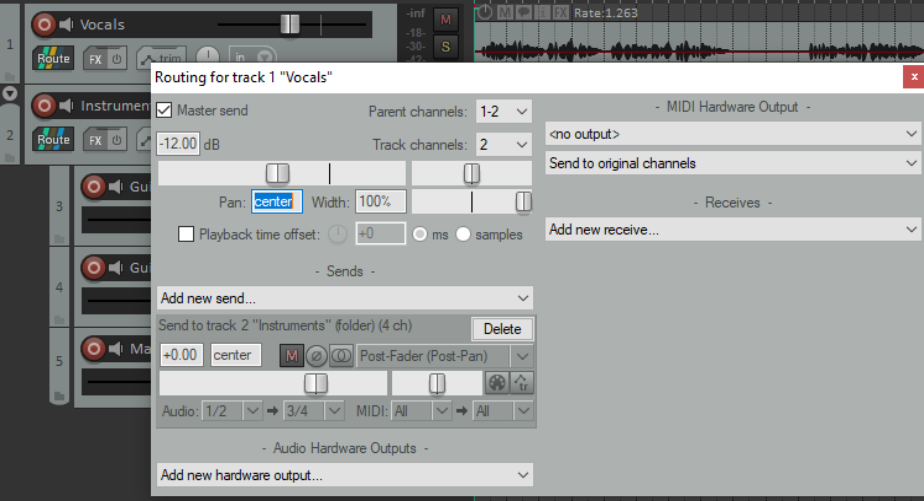
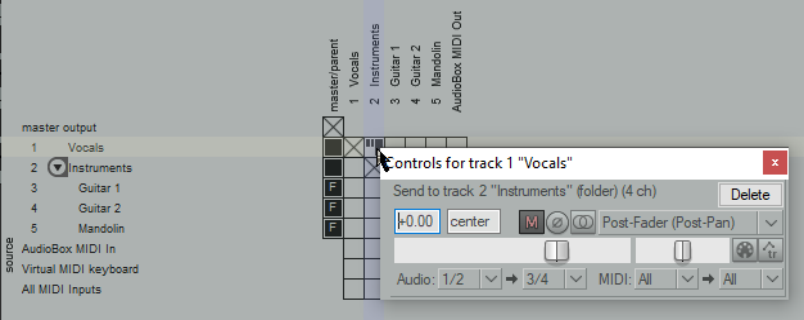
Sidechaining allows you to use the audio signal of one track to control the behavior of a plug-in such as a compressor or noise gate on a different track. An example might be when you want an instrument mix compressed by a lead vocal. In that case you would first create a send from channels 1 and 2 on the vocal track to channels 3 and 4 on the instrument submix or folder. First, you would create a send from channels 1/2 of the Vocal track to channels3/4 of the instrument folder. You can do this in the track routing window of the Vocals track or in the track routing matrix. Both these options are shown below.
Adding a send using the track routing window
Adding a send using the Routing Matrix
You can now set the detector input ReaComp or ReaGate to Auxiliary Inputs and you’re ready to go. In this example, if using ReaComp, the threshold setting will apply to the volume of the vocal track, while the compression settings will be applied to the instruments mix.