Spectral Hold
The JS Spectral Hold plug-in can be used to take a snapshot of what is playing, then use a phase vocoder to hold that sound until you tell it to stop The function of the first four trigger button are.
Kind: concept (effect-summary) Source: REAPER Effects Summary Guide v3.04
The JS Spectral Hold plug-in can be used to take a snapshot of what is playing, then use a phase vocoder to hold that sound until you tell it to stop The function of the first four trigger button are:
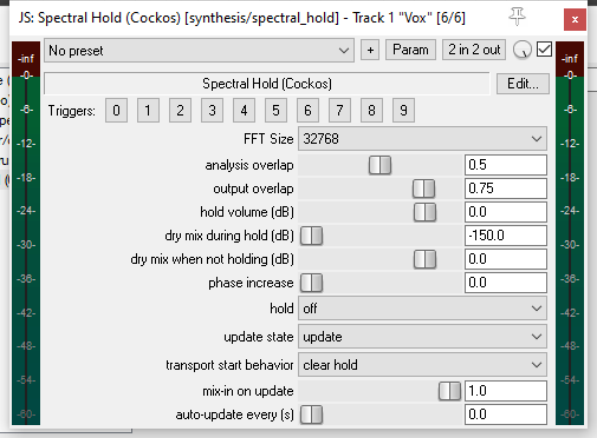
0 – Update and hold 1 – Toggle hold (no update) 2 – Update 3 – Stop hold They work by changing the settings in the three drop down lists (hold, update state, and clear hold), which are the last three controls in the plug-in window. You can also change these settings yourself, directly, using these drop down lists. Triggers 4 to 9 currently serve no purpose. The other controls are:
FFT Size Determines the FFT size used in the analysis. Seven discrete values between 512 and 32768 are available. Larger FFT sizes provide probably better tones in the sound generated, but introduce more latency and use more CPU. In any case, different sizes have very different sound.
Analysis overlap Determines the overlap (as a function of FFT size) at which two samples are taken in order to determine what to synthesize. Has no effect on performance.
Output overlap Determines the overlap when synthesizing the held tone. Larger values increase CPU use. Smaller values can have an audible pulsing effect.
Hold volume Determines the level of volume at which output is held.
Dry mix during hold Determines the level of volume of the dry (pre FX) signal in the mix when output is held.
Dry mix when not holding Determines the level of the volume of the dry (pre FX) mix when output is not held.
Phase increase Determines the effect to which the phase will be increased when a sound is held.
Hold drop-down A drop down with three settings – off, hold, and hold (do not update on switch). Changing the hold state from "off" to "hold" means a copy of the input audio is analyzed, stored, and immediately played.
Update state drop-down A drop down with two settings – off (represented by - ) and update. Changing update state from "-" to update means a copy of the input audio is analyzed and stored. If the Hold state is not in Off then the stored audio will be played immediately. Otherwise, if the Hold state is switched from Off to “Hold (do not update...", then it will switch to the stored audio.
Transport start behavior A drop down with two settings – clear hold and preserve hold.
Mix-in on Update Determines the extent (range 0.0 to 1.0) to which the sound will be mixed in when update is applied.
Auto-update every … A range of 0.0 to 30.0 seconds at which auto-updating can be set.